NetConfiger is a LAN network distribution tool for Windows. It turns one already-connected host into a reusable HTTP / SOCKS5 exit for the local network: the host connects to the target network through a business client you control, NetConfiger opens a proxy entry on that host, and other PCs, VMs or browser workstations on the same LAN simply point their proxy-aware software at that address — reusing the environment the host already established, without installing the original client again.
This guide walks through the real interface screen by screen. Every screenshot is a genuine capture from NetConfiger v1.5.0.
How do you share an existing Windows connection with another PC?
Quick answer: On a Windows host that already has an authorized working network connection, NetConfiger can provide an HTTP or SOCKS5 proxy listening on an accessible LAN address. Configure a second PC's proxy-aware applications with that address and port, then verify that requests reach the intended destination through the selected exit. This is explicit proxy sharing, not full-device routing or a transparent gateway.
This practical guide covers Windows network sharing, Windows VPN sharing and LAN proxy configuration using real NetConfiger screens. For ICS and other approaches, see three ways to share a Windows VPN connection.
1. Interface Overview
The window is titled NetConfiger v1.5.0 with the subtitle "Windows LAN Network
Distribution", split into a header, a function tab bar, a content area and a status bar.
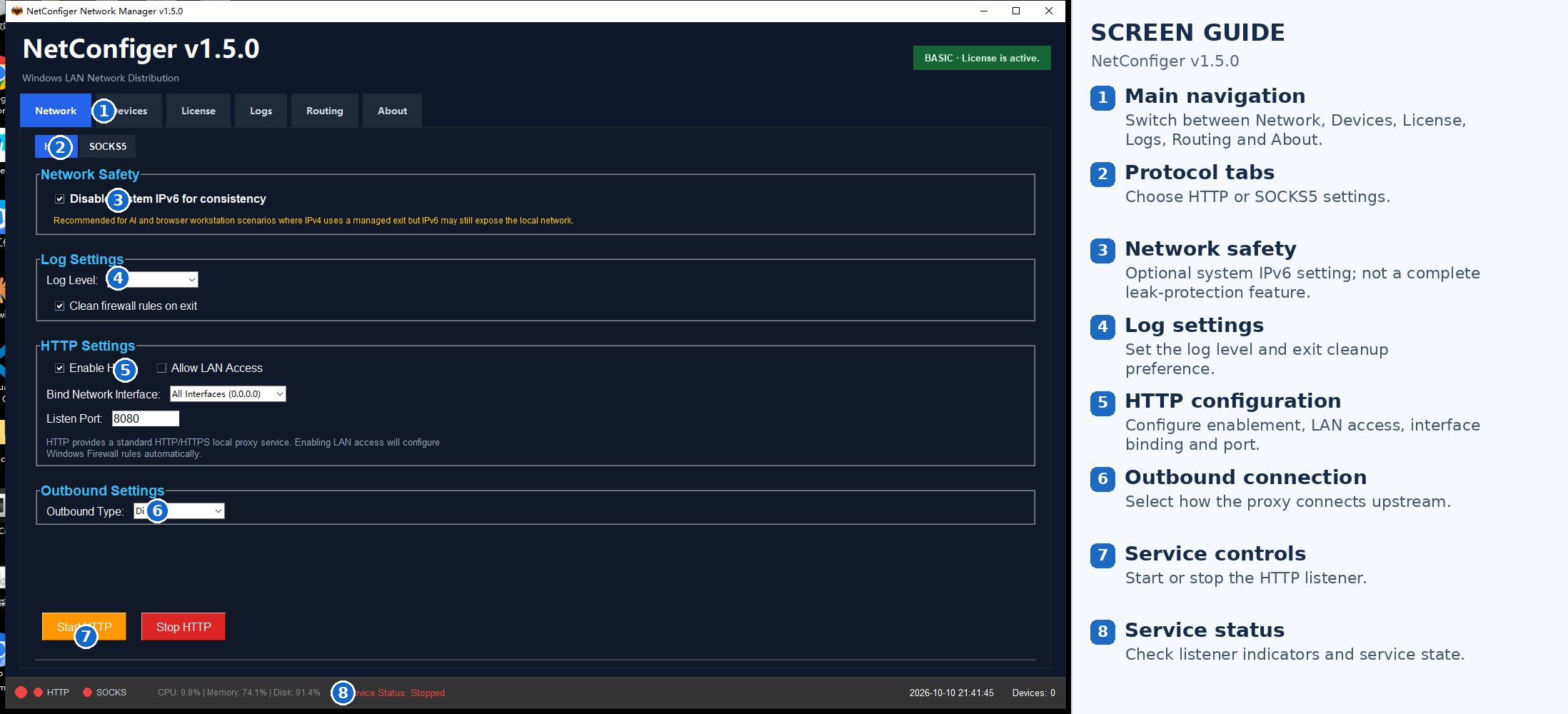 Figure 1 Main interface. Header and licence badge on top, six function tabs
in the middle, live status bar at the bottom.
Figure 1 Main interface. Header and licence badge on top, six function tabs
in the middle, live status bar at the bottom.
- Product name and version
- Six function tabs
- Licence badge (tier and validity)
- Network safety / IPv6 group
- Log settings group
- HTTP settings group
- Egress settings group
- Start / Stop buttons
- Service indicators (HTTP / SOCKS)
- CPU / memory / disk usage
- Service status text
- Connected device count
The six tabs are Network Distribution (all HTTP / SOCKS5 settings and start/stop), Device Management (view and admit LAN devices), Licence, Log, Route (egress NIC and upstream proxy), and About.
2. IPv6 and DNS: Preventing Unintended Bypass
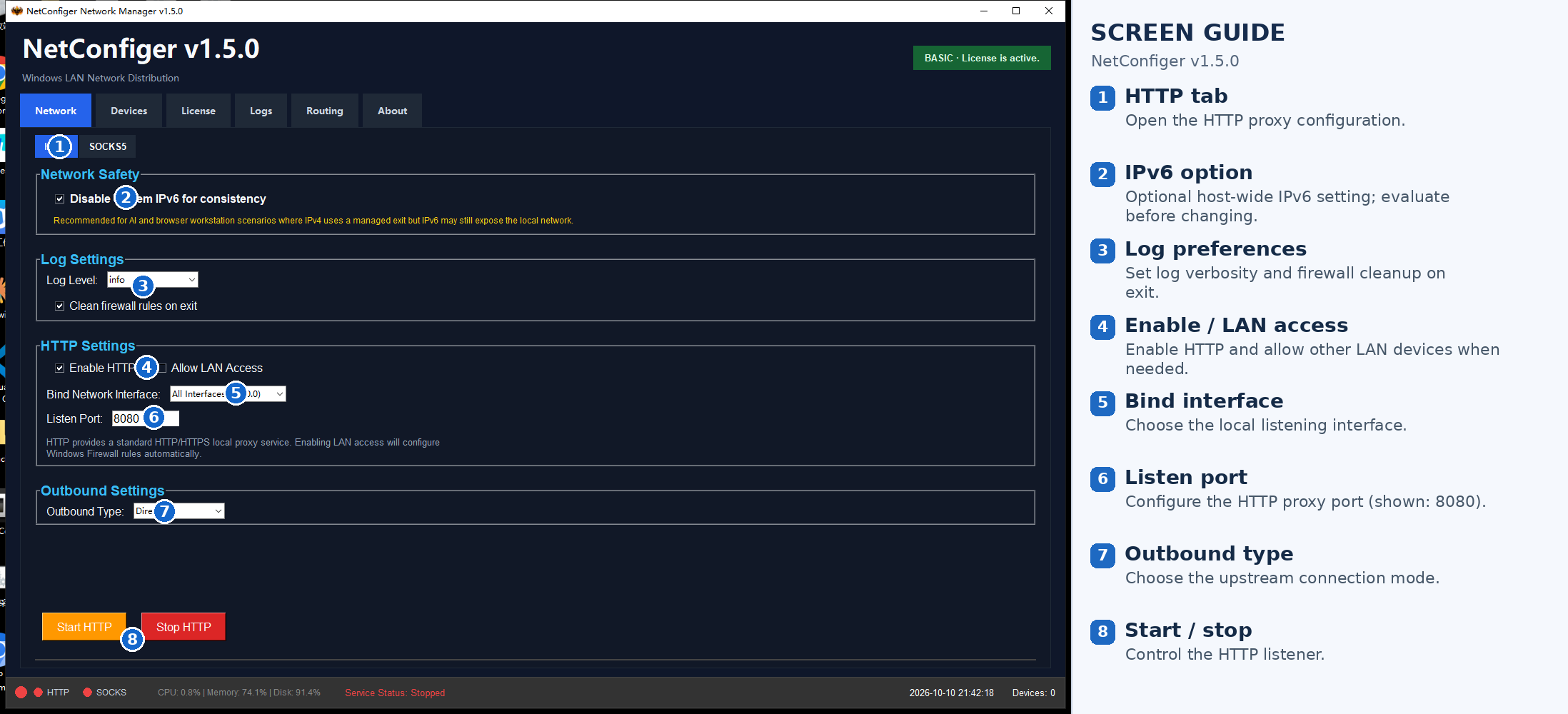 Figure 2 Network Distribution · HTTP page. The Network safety group at
the top holds the IPv6 toggle; the amber line below is the leak warning.
Figure 2 Network Distribution · HTTP page. The Network safety group at
the top holds the IPv6 toggle; the amber line below is the leak warning.
NetConfiger includes a “Disable system IPv6” option under Network Security. If your selected egress or upstream proxy is IPv4-only, disabling IPv6 may reduce the chance of certain applications using a native IPv6 connection. However, disabling IPv6 alone does not prevent DNS leaks, and it is not required for every setup.
Verification checklist
- Confirm whether your selected egress supports IPv4, IPv6 and the DNS method you intend to use.
- Check whether each relevant application honors the system proxy or needs its own proxy configuration.
- Test IPv4 and IPv6 connectivity separately, and check DNS resolution behavior.
- Keep IPv6 enabled if your environment requires it unless you have assessed the effect of changing it.
These screenshots illustrate settings; they do not by themselves demonstrate complete traffic or DNS isolation.
3. Selecting an Egress Adapter: Requirements and Routing
Lab example: the required network is available only through a Windows client
Some corporate or proprietary services supply a Windows sign-in application rather than a router-ready configuration. Your host may show both an Ethernet adapter for reaching other devices and a separate virtual adapter for the authorized connection. The listening address tells client machines where to connect; egress selection affects where subsequent proxied requests go. These are separate settings.
First confirm the target works on the host, then test a real proxied request from a client. A visible virtual adapter alone is not proof that the upstream service permits forwarded traffic. More background: reusing a Windows-only network client.
The egress adapter selector can list both physical and virtual network interfaces. Selecting an interface does not by itself guarantee that traffic uses it: the destination route, gateway reachability, interface metrics and upstream service must also work correctly.
The following interfaces were observed on the test host. Their presence alone does not verify end-to-end forwarding across both paths:
| Exit | Adapter type | Address | Role |
|---|---|---|---|
VPN - VPN Client | Virtual (VPN client) | 10.254.50.20 | Business network exit |
Ethernet | Physical adapter | 192.168.2.6 | LAN distribution entry |
the physical adapter handles "handing it out" — letting LAN devices reach this host.
The two are switched through the Egress NIC dropdown on the Route tab.
When to switch the egress adapter
| Scenario | Which adapter |
|---|---|
| The business client runs over a virtual adapter and others must reuse it | Bind the entry to the physical Ethernet; point the upstream proxy at the local proxy on 127.0.0.1 |
| The host is its own egress, no distribution needed | Bind both entry and upstream to the virtual adapter path |
| One machine holds several business networks | Split by subnet: 0.0.0.0/0 via adapter A, 10.0.0.0/24 via adapter B |
| The physical adapter moved to a different subnet | Change it in the dropdown — no config file editing |
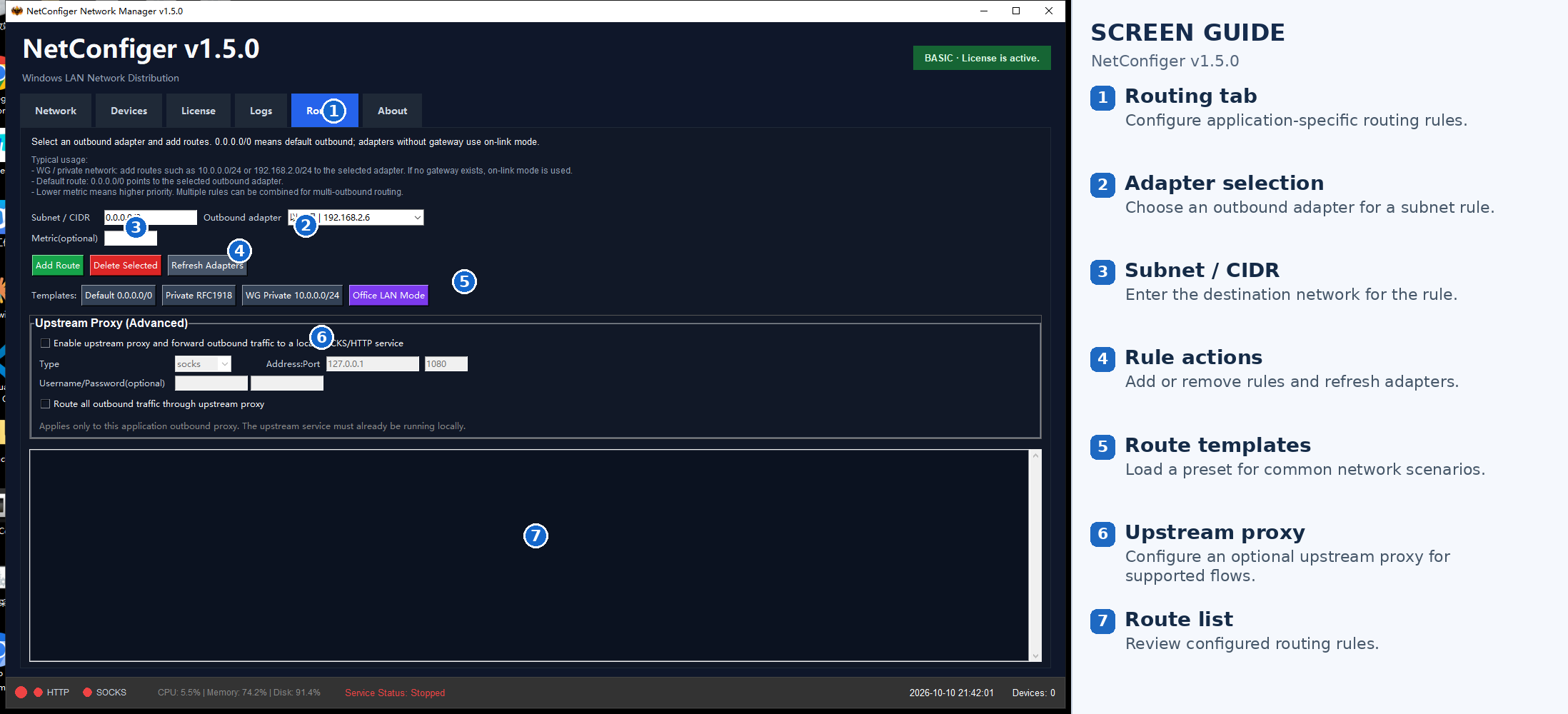 Figure 3 Route page. The egress adapter is a dropdown that lists physical and
virtual adapters alike; templates and upstream proxy sit below.
Figure 3 Route page. The egress adapter is a dropdown that lists physical and
virtual adapters alike; templates and upstream proxy sit below.
- Page purpose notes
- Common use cases
- Subnet / CIDR field
- Egress NIC dropdown (any adapter)
- Metric (lower value wins)
- Add route / delete selected / refresh NICs
- Route template buttons
- Route list
- Upstream proxy (advanced)
- Service indicators
Basic usage
The page states: select an egress NIC and add a route. 0.0.0.0/0 means the
default egress; with no gateway it falls back to direct routing.
| Field | Meaning |
|---|---|
| Subnet / CIDR | Network to match. 0.0.0.0/0 matches everything (default egress) |
| Egress NIC | A dropdown listing both physical and virtual adapters |
| Metric | Optional. Lower values win, so several rules can be combined |
Common ways to use the egress settings
10.0.0.0/24 or 192.168.2.0/24 and pick
an adapter; with no gateway it uses direct mode automatically.② Default route:
0.0.0.0/0 sets the egress NIC and upstream proxy.③ Metric combinations: lower is higher priority, so several rules can shape egress routing.
Four route templates
| Template | Network | Use for |
|---|---|---|
Default 0.0.0.0/0 | All traffic | Default egress |
Private RFC1918 | Private ranges | Internal traffic |
WG Private 10.0.0.0/24 | 10.0.0.0/24 | WireGuard private net |
办公局域网络模板 (Office LAN) | Office LAN range | Office environments |
Upstream proxy: hand the egress to a local proxy service
When the host already runs the original client's proxy, use Upstream proxy to forward outbound traffic to it and let NetConfiger redistribute it across the LAN.
| Field | Meaning |
|---|---|
| Enable upstream proxy | Master switch; forwards outbound traffic to the local service |
| Type | socks or http — must match that service |
| Address / port | Defaults to 127.0.0.1:1080 |
| Username / password | Optional; only if that proxy requires auth |
| Send all outbound via upstream | Unticked, only traffic matching a route uses the upstream |
4. Start the Proxy Service and Check Its Status
This is the single most important — and most commonly missed — step. Filling in the settings is not the same as having the service running. You must click Start HTTP and confirm the status bar turns to Running.
Status reference
| Status bar | HTTP dot | Meaning |
|---|---|---|
Service status: Running | Lit | Running — clients can connect |
Service status: Stopped | Dim | Not running — clients cannot connect |
Start-up steps
- Open the Network Distribution tab and stay on the HTTP sub-tab
- Tick Enable HTTP
- Tick Allow LAN access (required for other machines)
- Set Bind to NIC to
All NICs (0.0.0.0)or a specific physical/virtual adapter - Leave the listen port at
8080(does not clash with 1080, so both can run) - Click the orange Start HTTP button
- Wait a few seconds and confirm the status bar reads
Service status: Runningwith the HTTP dot lit - Verify on the command line that the port really is listening
Seeingnetstat -ano | findstr :8080LISTENINGis the real confirmation
If it fails to start
Open the Log tab and look for these:
| Log line | Cause | Action |
|---|---|---|
http 服务Unlicensed | Invalid licence | Import a valid .lic on the Licence tab |
| Port-in-use entries | 8080 taken by another program | Choose another listen port |
| Firewall-rule entries | Rules did not apply | Re-tick Allow LAN access, or clean the firewall from Device Management |
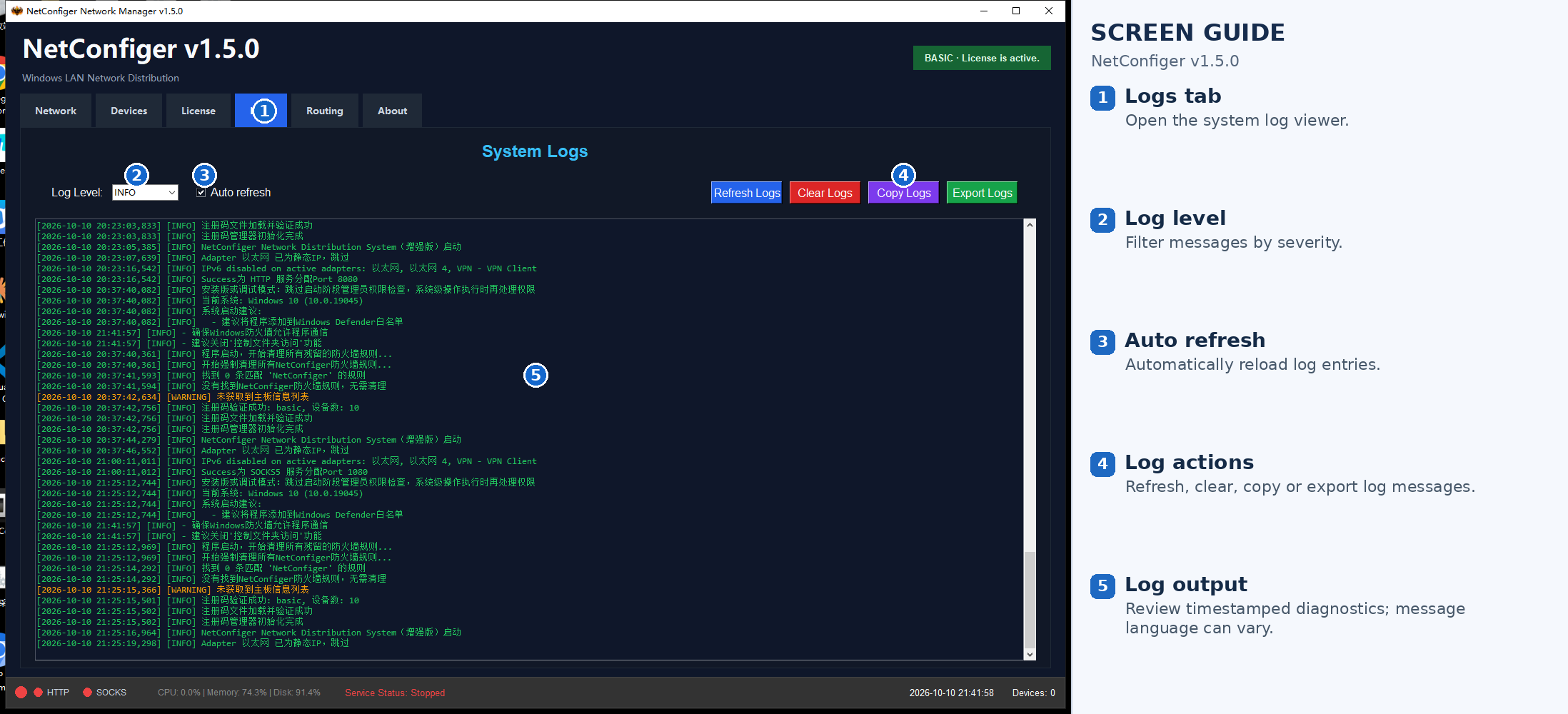
Note: The application interface is in English, but existing log messages may still appear in Chinese depending on the component that generated them.
Figure 4 System log. Filters and auto-refresh on the left, four actions on the right — "Copy log" sends the whole thing to support in one click.5. Connecting a Second PC
Practical example: another workstation or virtual machine needs the host's connection
Suppose a Windows workstation can access a private test API through a corporate client, while a second PC or a virtual machine cannot. If the consuming tool supports an explicit HTTP or SOCKS5 proxy and can reach the host, configure the host address and NetConfiger listening port in that tool. Verify the target API from the client environment, not just from the host.
For a VM, check the VM's network mode, host reachability and firewall policy first. Docker containers and WSL2 applications may require their own proxy and DNS settings. A successful TCP connection to the proxy port does not by itself establish that the application uses the intended egress.
5.1 Confirm the client can reach the host listening address
The client must be able to reach the host’s listening address over the network. The machines do not strictly need to share a subnet: routed subnets can also work when routing, firewalls and access controls permit the connection. The same LAN is simply the easiest starting point.
Topology used for this guide (values taken from the real host and the real second PC):
Ethernet (physical adapter) IPv4
192.168.2.6 → the address clients enterVPN - VPN Client (virtual adapter) IPv4
10.254.50.20 → the business network exitDefault gateway
192.168.2.2Second PC (client)
IPv4
192.168.2.3 → same subnet, reaches the host directly
The host has auto-discovered 19 devices on the LAN
(192.168.2.2, 192.168.2.3, 192.168.2.4,
192.168.2.5, 192.168.2.7, 192.168.2.8 and more); the second
PC appears in Device Management where it can be given an alias.
5.2 Host side: note three values
- Listen port — HTTP
8080, SOCKS51080by default - Host LAN address — shown at the bottom of the Route tab;
this machine is
192.168.2.6(Ethernet, physical adapter) - Service status — must read
Running
127.0.0.1:10808) rather than this one. Only after clicking Start HTTP and
the status bar reads Running does this software take over the proxy entry. Reverse the order and
the second PC will not connect.
5.3 Second PC: test reachability first
Open a command prompt on the second PC and confirm it can reach the host:
ping 192.168.2.6Replies mean the two machines see each other. If not, check the firewall, the subnet, and whether you are on a guest network with AP isolation.
Then confirm the port is listening:
Test-NetConnection -ComputerName 192.168.2.6 -Port 8080TcpTestSucceeded : True means the port is reachable. This step immediately separates
"network unreachable" from "service not started".
5.4 Configure the Windows System Proxy on Another PC
Set the Windows system proxy to the host’s HTTP listening address. Applications that honor these settings may use the proxy automatically. Other applications, background services and some UDP traffic may not; test each application that matters.
Option A — GUI (recommended)
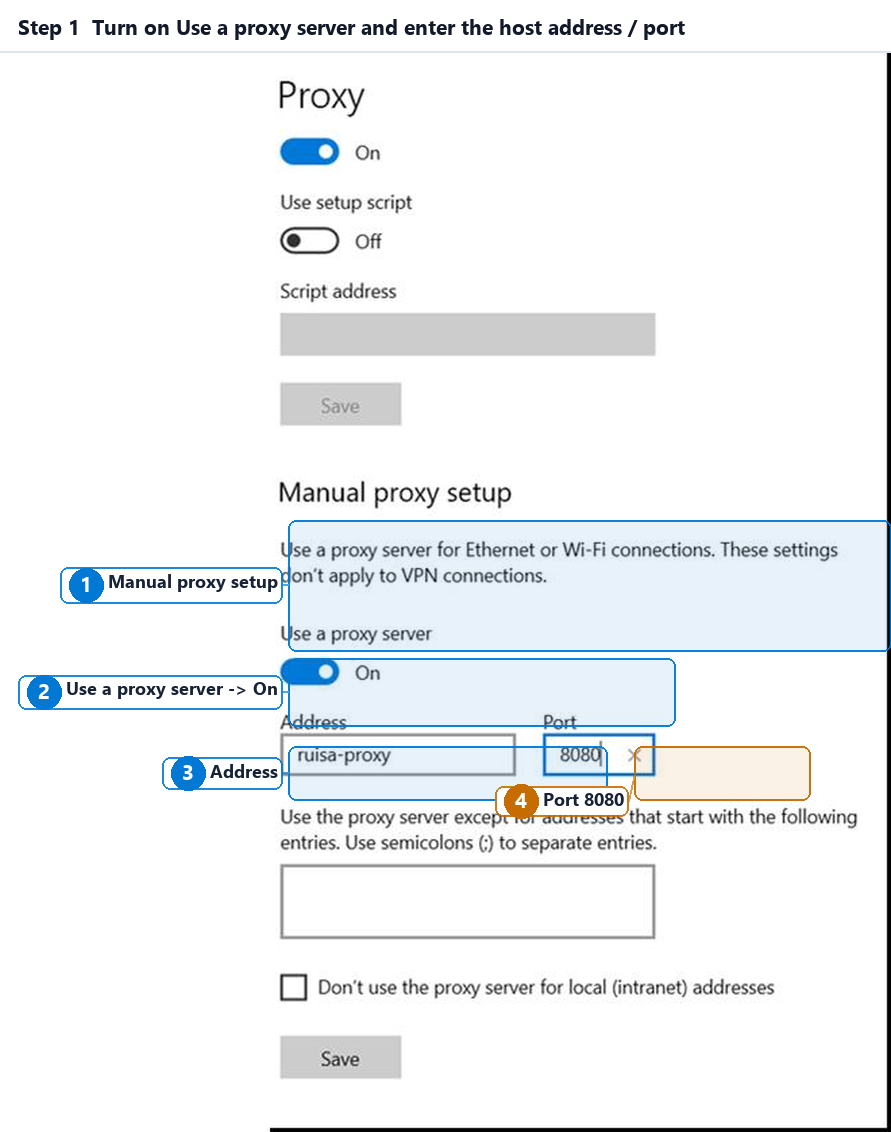 Figure 5-1 Turn on Use a proxy server and fill in the address and port.
An English-locale Windows 10 capture — the fields read exactly as labelled here.
Figure 5-1 Turn on Use a proxy server and fill in the address and port.
An English-locale Windows 10 capture — the fields read exactly as labelled here.
- The Manual proxy setup block — everything you fill lives here
- Use a proxy server: flip from Off to On
- Address: the host's LAN IP, here
192.168.2.6 - Port: the HTTP listen port, here
8080
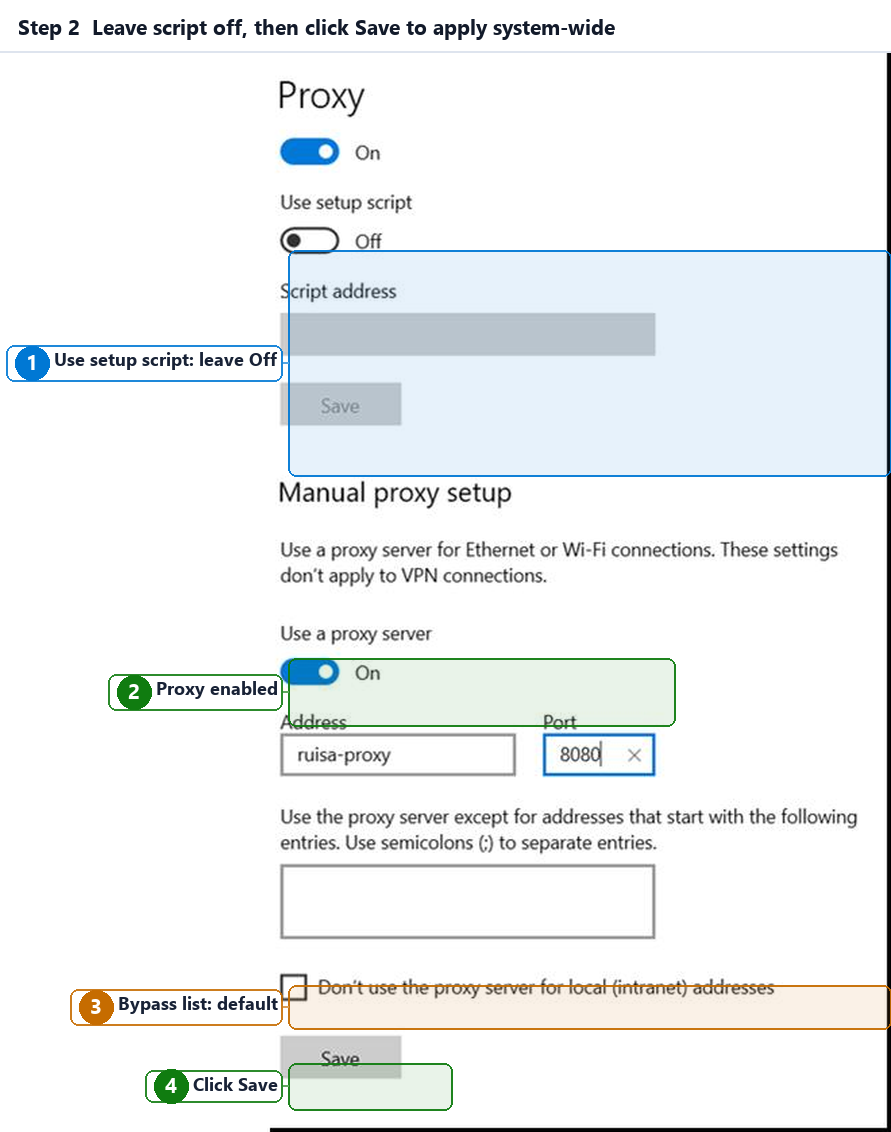 Figure 5-2 Confirm the settings and save.
- Leave Use setup script Off — a PAC script conflicts with manual settings
- Confirm the proxy toggle is now On
- "Don't use the proxy server for local (intranet) addresses" — leave as default, so local traffic bypasses the proxy
- Click Save — the setting applies system-wide immediately
Option B — Command line (fast, scriptable)
In an administrative command prompt, switch the system proxy on:
netsh winhttp set proxy 192.168.2.6:8080
reg add "HKCU\Software\Microsoft\Windows\CurrentVersion\Internet Settings" /v ProxyEnable /t REG_DWORD /d 1 /f
reg add "HKCU\Software\Microsoft\Windows\CurrentVersion\Internet Settings" /v ProxyServer /t REG_SZ /d "192.168.2.6:8080" /f
To revert (turn the system proxy back off):
netsh winhttp reset proxy
reg add "HKCU\Software\Microsoft\Windows\CurrentVersion\Internet Settings" /v ProxyEnable /t REG_DWORD /d 0 /f127.0.0.1:10808 (left by other software) with ProxyEnable=0. That is
exactly why you should check which proxy is currently active before changing it —
otherwise it fights with whatever else is already configured.
Option C — Per-application proxy
| Software | Where the setting lives |
|---|---|
| Chrome / Edge | Settings → System → Open proxy settings → Manual proxy |
| Firefox | Settings → Network Settings → Manual proxy configuration → HTTP proxy |
| Various scraping / business clients | The application's own "Proxy" setting |
Protocol: HTTP  (or SOCKS5 if using the SOCKS5 entry)
Address:  192.168.2.6      ← the host's physical LAN address
Port:     8080             ← HTTP default; SOCKS5 default is 1080
5.5 Verify the Proxy Connection and Egress
Visit an IP lookup site. If the exit IP shown is the host's exit rather than the PC's own public IP, the proxy is working.
curl -x http://192.168.2.6:8080 https://api.ipify.orgThe returned IP is the proxy exit IP. A timeout means going back to step 5.3.
① Is the host status bar
Running (not Stopped)?② Is Allow LAN access ticked on the host?
③ Did you enter the host's facing-outbound adapter address (
192.168.2.6, not the VPN virtual adapter's 10.254.50.20)?
192.168.2.3 on the same LAN. Starting and stopping the service
is a system-level action that must be triggered by an administrator on the host; complete the final
connectivity check on your own machine and treat "Running" in the status bar as the criterion.
6. Configure the SOCKS5 Proxy
Some applications only speak SOCKS5. Switch to the SOCKS5 sub-tab — same logic as HTTP, fewer fields.
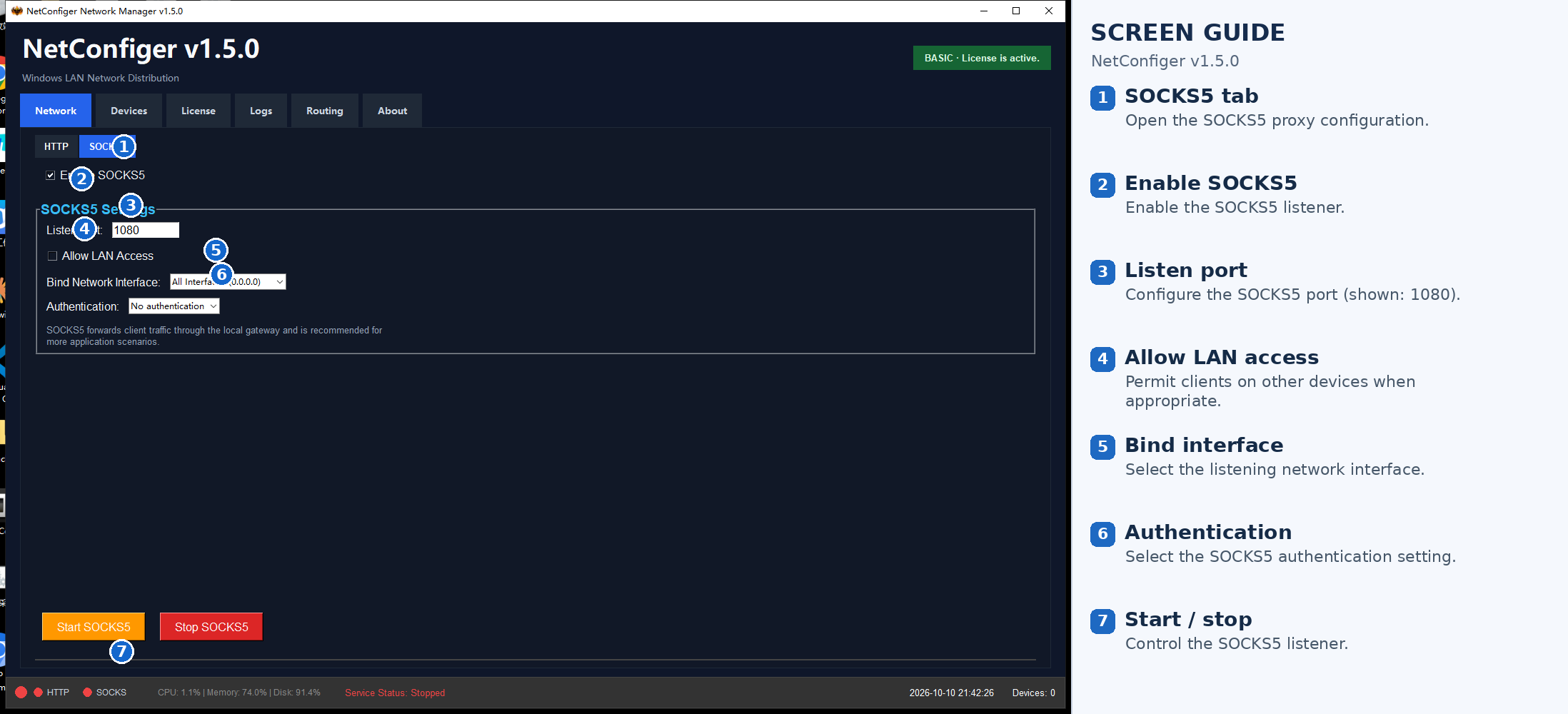 Figure 6 SOCKS5 entry settings. Port and authentication mode are the essentials;
any adapter can be bound here too.
Figure 6 SOCKS5 entry settings. Port and authentication mode are the essentials;
any adapter can be bound here too.
- SOCKS5 sub-tab
- Enable SOCKS5
- SOCKS5 settings area
- Listen port 1080
- Allow LAN access
- Authentication mode
- Start / Stop SOCKS5
- Service indicators
| Field | Meaning |
|---|---|
| Listen port | Default 1080; does not clash with HTTP on 8080, so both can run |
| Allow LAN access | As with HTTP — required for other devices |
| Bind to NIC | All NICs by default; any physical or virtual adapter can be selected |
| Authentication | Defaults to no authentication. Fine on a trusted LAN; pick an authenticated mode otherwise |
7. Device Management
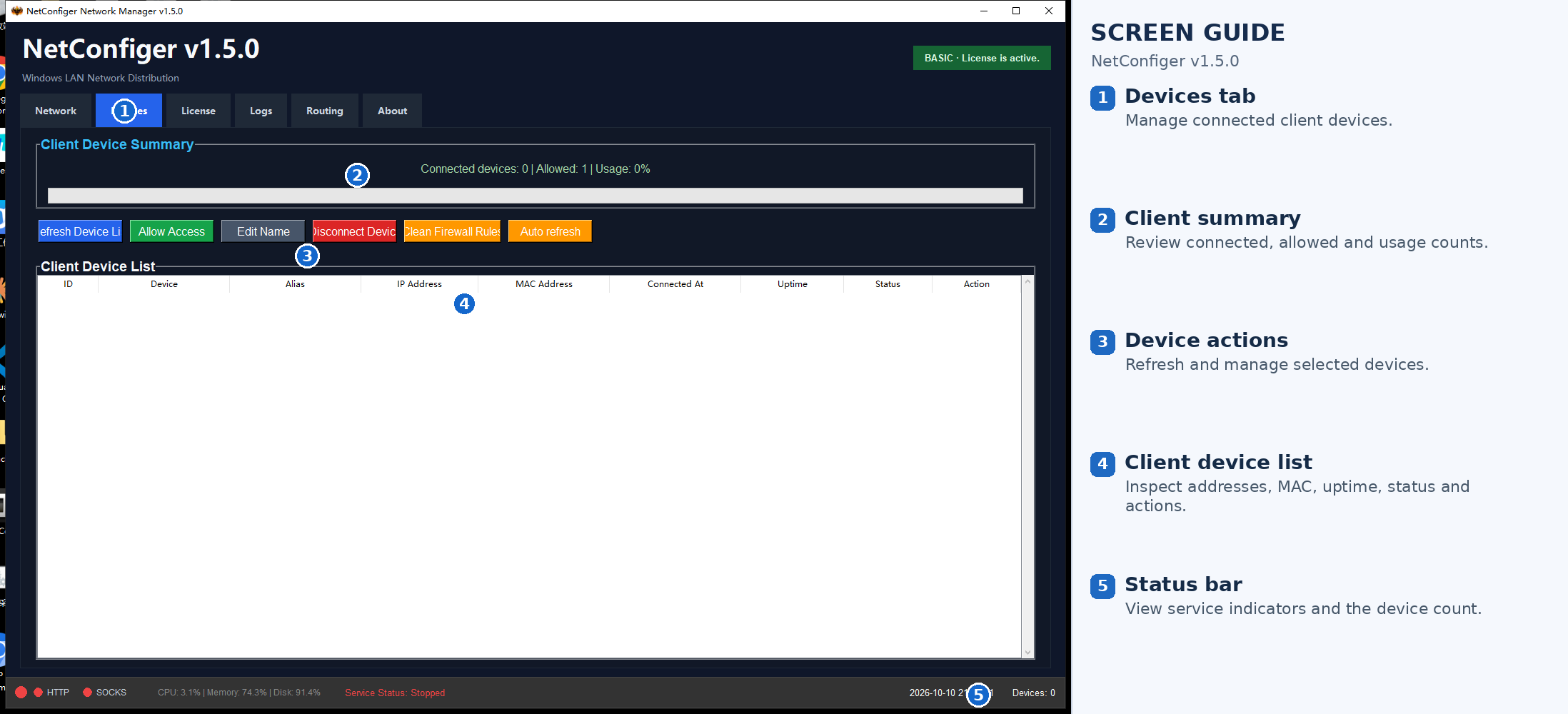 Figure 7 Device management. Overview and actions on top, client device table
below.
Figure 7 Device management. Overview and actions on top, client device table
below.
- Device overview
- Device action buttons
- Client device list
- Service indicators
- Service status
Table columns: No., Device, Alias, IP address, MAC address, Connect time, Online duration, Status, Actions.
Connected 0 | Allowed 10 | Usage 0%. As usage nears 100% you must upgrade, otherwise new
devices are refused.
Actions: Refresh devices, Allow access, Edit name (readable aliases so the team can tell machines apart), Disconnect device, Clean firewall, and Auto refresh for long-running observation.
8. Licensing
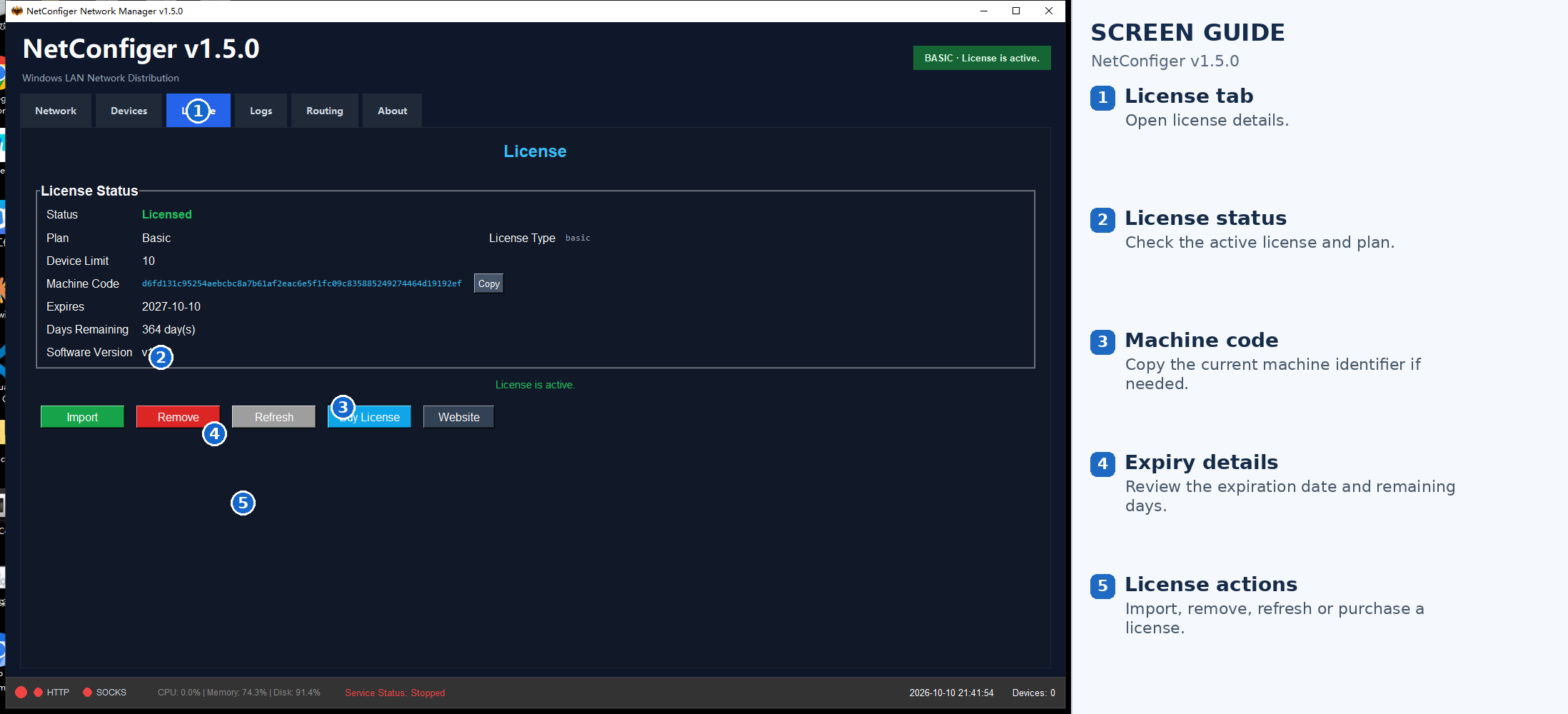 Figure 8 Licence page. All licence fields plus five action buttons.
- Licence status details
- Status: Licensed
- Machine code (hardware binding)
- Expiry date and days remaining
- Licence action buttons
- Service indicators
| Field | Meaning | This host |
|---|---|---|
| Status | Licensed when valid | Licensed |
| Plan | Licence tier | Basic |
| Device count | Client device limit | 10 |
| Machine code | Host fingerprint the licence binds to | d6fd131c9525… |
| Expiry date | When the licence ends | 2027-10-10 |
| Remaining | Days left | 364 days |
| Version | Running version | v1.5.0 |
Five buttons: Import licence (pick a .lic),
Remove licence, Refresh status, Buy licence,
Website.
http 服务Unlicensed / socks5 服务Unlicensed and the
status bar stays at Stopped.
9. About NetConfiger and Supported Features
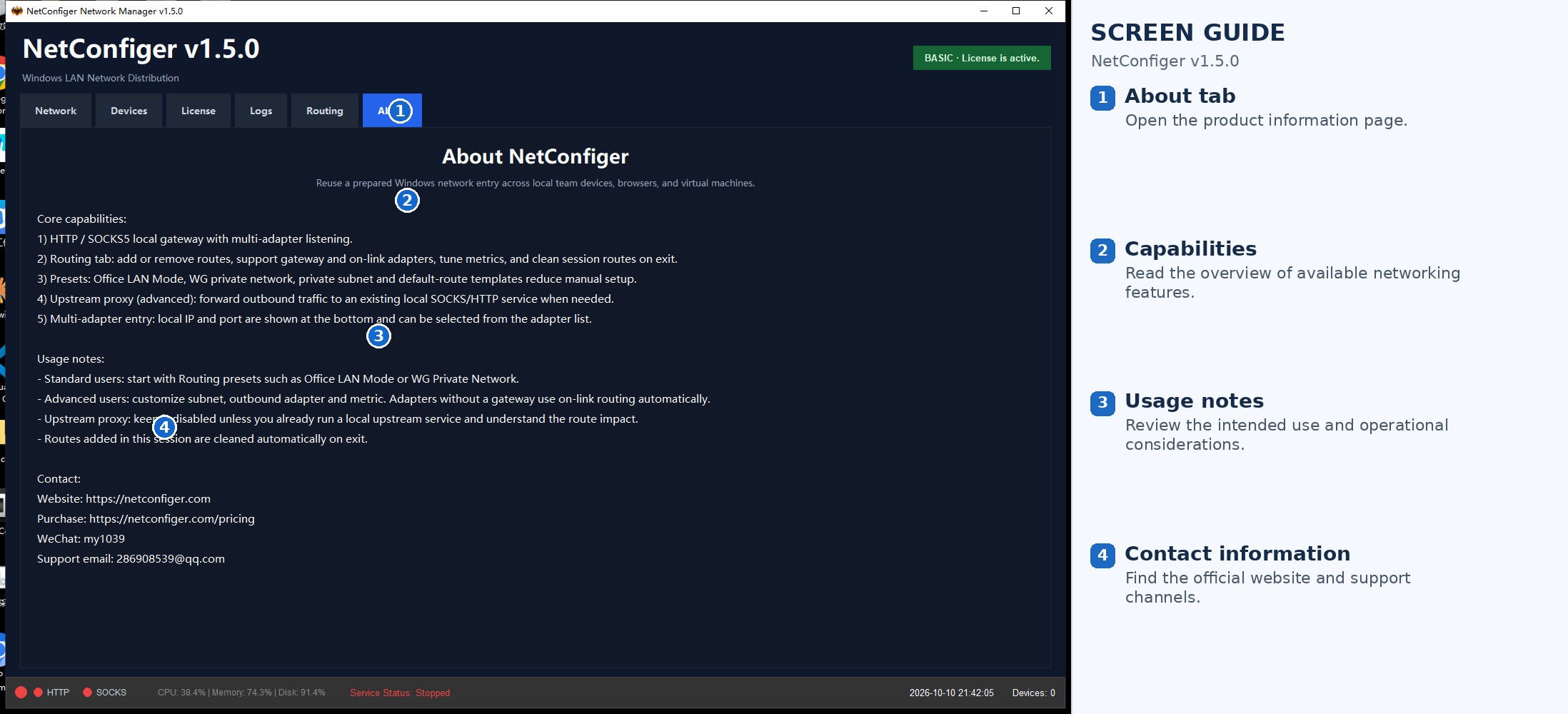 Figure 9 About page. The product's own capability list, usage
recommendations, and contact details.
Figure 9 About page. The product's own capability list, usage
recommendations, and contact details.
- Core capability list
- Capability details (five items)
- Usage recommendations
- Contact and website
- Service indicators
- HTTP / SOCKS5 local gateway with multi-NIC listening
- Route page to add or remove routes, supporting gateway and direct NICs, with Metric tuning; session routes are cleaned up on exit
- Built-in templates for office LAN, WG private networks and private-range default routes, reducing manual configuration
- Upstream proxy (advanced) to forward outbound traffic to an existing local SOCKS / HTTP service
- Multi-NIC entry: the host IP and port are shown and the entry adapter can be chosen from a list
Usage recommendations: ordinary users can start from the office-LAN or WG private template; advanced users may customise subnet, egress NIC and Metric (NICs without a gateway fall back to direct routing); the upstream proxy only stores gateway settings and the service must already be running locally; routes added in a session are removed on exit.
10. FAQ
Why can I connect to the proxy port but not the target API?
Check these separately: host-side target access, the client's explicit proxy configuration, proxy protocol support, the selected route or upstream interface, and DNS handling. A reachable port proves only that the listener is reachable.
Will every application in a VM, Docker container or WSL2 use this proxy?
No. Each application or environment must support and correctly configure the proxy. System proxy settings do not cover all software or protocols, and some UDP or non-HTTP traffic needs a different network solution.
The second PC cannot connect — what do I check first?
In order: ① is the host status bar Running; ② is Allow LAN access
ticked; ③ did you enter the host's outbound-facing adapter address. Only then look at firewall rules.
The UI opens but the service will not start?
Usually licensing. A log line containing http 服务Unlicensed says exactly that —
import a valid .lic file on the Licence tab.
Do I really have to disable IPv6?
Must IPv6 be disabled? No. Consider changing IPv6 only when your upstream or applications require IPv4-only connectivity and you have assessed the impact. Check DNS resolution, IPv4/IPv6 connectivity and the actual egress separately; disabling IPv6 does not guarantee that DNS requests follow the proxy.
Port 8080 is already in use
Change the listen port to a free one and update the clients to match.
Do clients need the original client installed?
No. Downstream devices only need proxy-aware software. Eliminating that repeated installation is the core value of this product.
My licence broke after changing PCs
The machine code changed; submit the new one and have the licence file reissued.
Over the device limit?
Device Management shows usage. Remove idle devices, or move to a higher tier.
11. Usage Notes
- Use this software only with devices, accounts and business environments you are authorized to manage.
- Comply with local law and third-party service terms.
- NetConfiger supplies no VPN accounts, proxy nodes or upstream network lines.
- The current public release is not a transparent whole-device gateway — downstream applications must support explicit proxy settings.
Product home: netconfiger.com
Key points
- NetConfiger lets Windows PCs share existing VPN or network connections over LAN using HTTP/SOCKS5 proxies, allowing compatible devices and applications to reuse a connection without installing the original client.
- Configure the LAN listening address, proxy port, and network adapter, then verify service status, client connectivity, and the actual outbound IP to ensure traffic follows the intended network path.
- Troubleshoot Windows proxy sharing across multiple PCs, virtual machines, and testing environments by checking firewall rules, routing, upstream proxies, DNS, and IPv4/IPv6 connectivity.